
Libraries - Introduction to C#
Libraries
C# includes many predefined functions and libraries that developers can use to accomplish various tasks more easily and efficiently. The .NET Framework provides these libraries and includes functionalities for things like file I/O, database access, networking, and much more.
A library in C# is typically provided as a .dll (Dynamic Link Library) file. To use the library's functions and classes, you must first reference it in your project. This will be done automatically if the library is installed via a package manager like nuget, or if you use a library from within the .NET ecosystem.
The using directive then tells the compiler to use a specific namespace in the library. A namespace groups related class, structures, and other types under a single name. For instance, the System namespace includes fundamental classes and base types that are used in C# programming.
For example, to use the File class from the System.IO namespace for handling files, you would first need to add using System.IO; at the top of your code.
using System.IO;

class Program
{
    static void Main(string[] args)
    {
        // Check if a file exists
        if (File.Exists("test.txt"))
        {
            // Read the content of the file
            string content = File.ReadAllText("test.txt");
            Console.WriteLine(content);
        }
        else
        {
            Console.WriteLine("The file does not exist.");
        }
    }
}
In this example, File.Exists is a predefined function from the System.IO namespace that checks if a file exists at the provided path and File.ReadAllText is another predefined function that reads the entire content of the file as a string. Because System is a core library, the compiler will automatically include it.
Similarly, you can use predefined functions from other namespaces and libraries—for instance, the System.Math namespace contains mathematical functions such as Math.Sqrt for computing the square root of a number, Math.Pow for raising a number to a specified power, and Math.Round for rounding a number to the nearest integer.
using System;

class Program
{
    static void Main(string[] args)
    {
        double num = 9.0;
        double squareRoot = Math.Sqrt(num);
        Console.WriteLine($"The square root of {num} is {squareRoot}");

        double baseNum = 2.0;
        double exponent = 3.0;
        double power = Math.Pow(baseNum, exponent);
        Console.WriteLine($"{baseNum} raised to the power of {exponent} is {power}");

        double toBeRounded = 9.5;
        double rounded = Math.Round(toBeRounded);
        Console.WriteLine($"{toBeRounded} rounded to the nearest integer is {rounded}");
    }
}
As you can see, leveraging the predefined functions and libraries provided by the .NET Framework can achieve complex functionality with less code.
NuGet
In addition to the standard libraries, C# offers extensive support for using third-party libraries and packages. These can be added to your project through various means, including the NuGet package manager. NuGet is a free and open-source package manager designed for the Microsoft development platform, and it hosts thousands of libraries.
Adding a NuGet package to your project can be as easy as right-clicking on your project in the Solution Explorer in Visual Studio, selecting "Manage NuGet Packages..." and then searching for and installing the required package. If using a code editor, we use the dotnet package add command, but Microsoft provides great documentation for using nuget from the CLI.
Once a package is installed, you can utilise its functionality in your code by adding the appropriate using directive at the top of your file. The Newtonsoft.Json package, for instance, provides powerful tools for working with JSON data.
using Newtonsoft.Json;
using System;
using System.Collections.Generic;

class Program
{
    static void Main(string[] args)
    {
        string json = "[{'Name':'John', 'Age':30}, {'Name':'Jane', 'Age':28}]";

        List<Person> people = JsonConvert.DeserializeObject<List<Person>>(json);

        foreach (var person in people)
        {
            Console.WriteLine($"Name: {person.Name}, Age: {person.Age}");
        }
    }
}

public class Person
{
    public string Name { get; set; }
    public int Age { get; set; }
}
In this example, the JsonConvert.DeserializeObject<T> method is used to parse the JSON string into a list of Person objects. This predefined function, part of the Newtonsoft.Json library, dramatically simplifies the task of JSON parsing.
Manual Referencing
It is also possible to manually link a library to the project. If you use an IDE such as Visual Studio, or Jetbrains Rider, it's as simple as right-clicking on the Project Dependencies section under the solution explorer and selecting the Add Project Reference... option, and then finding the library you want to link.
Alternatively, if you are using a Code editor, such as VSCode, you will need to manually edit the project file to include the references, such as the example below, which is going to reference every .dll file in the libs subfolder:
<Project Sdk="Microsoft.NET.Sdk">

  <PropertyGroup>
    <TargetFramework>net7.0</TargetFramework>
    <ImplicitUsings>enable</ImplicitUsings>
    <Nullable>enable</Nullable>
    <AllowUnsafeBlocks>true</AllowUnsafeBlocks>
  </PropertyGroup>
  <ItemGroup>
    <!-- references look like this -->
    <Reference Include="libs\*.dll" />
  </ItemGroup>

</Project>
It's also possible to hardcode paths and establish multiple Reference definitions for each individualreference specifically.
To identify the namespaces, types, classes, and methods provided by the library, it is generally considered best practice to consult the provided documentation. Both Visual Studio and Visual Studio Code will provide code auto-complete functionality for the functionality from imported libraries through their IntelliSense auto-complete tool.
While the .NET Framework and third-party libraries offer a wide array of predefined functions, it's essential to understand their usage and potential impact on your application. Some libraries may have licensing restrictions, or they may not be maintained actively. Always research before including a third-party library in your project.
Questions
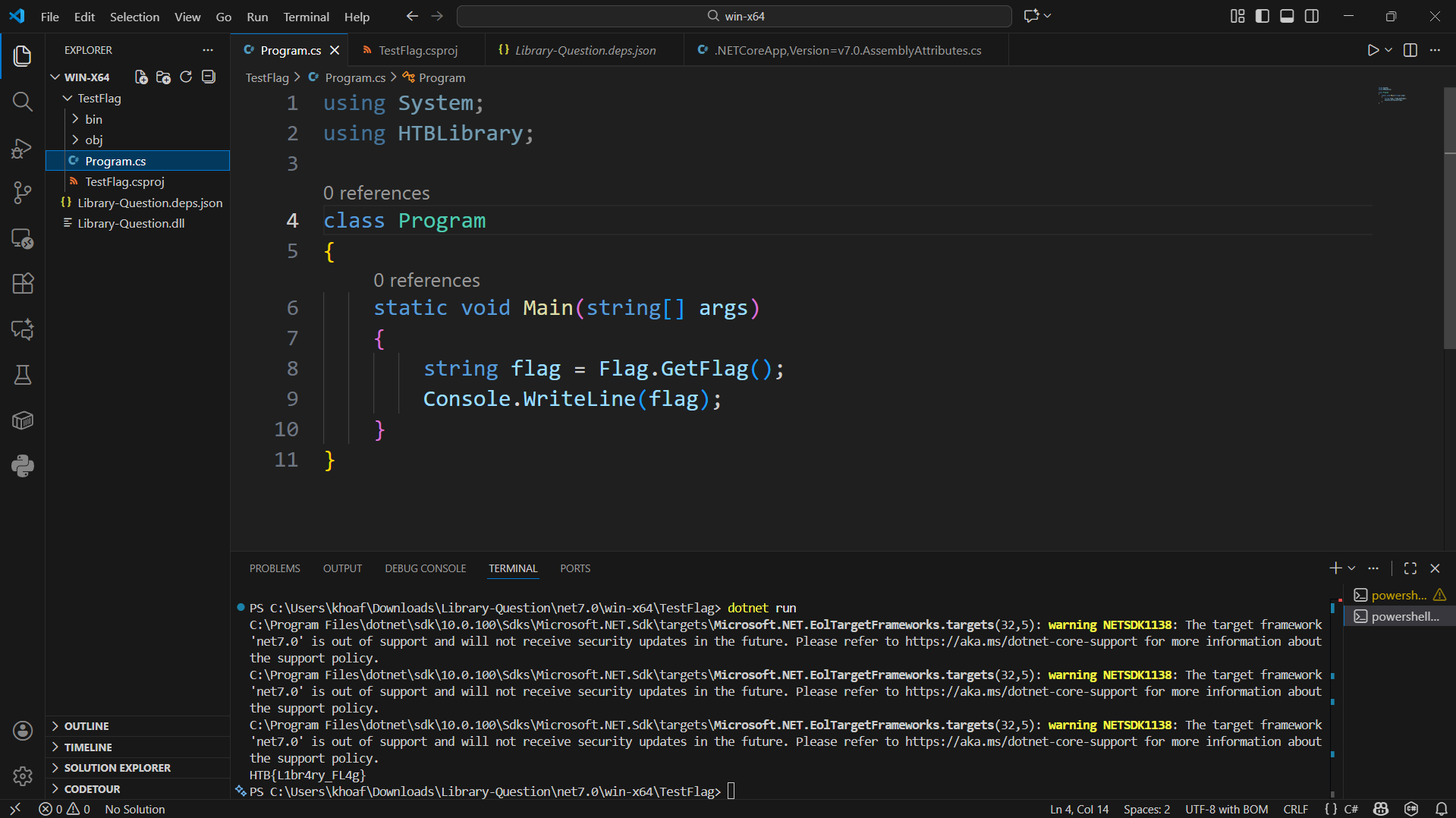
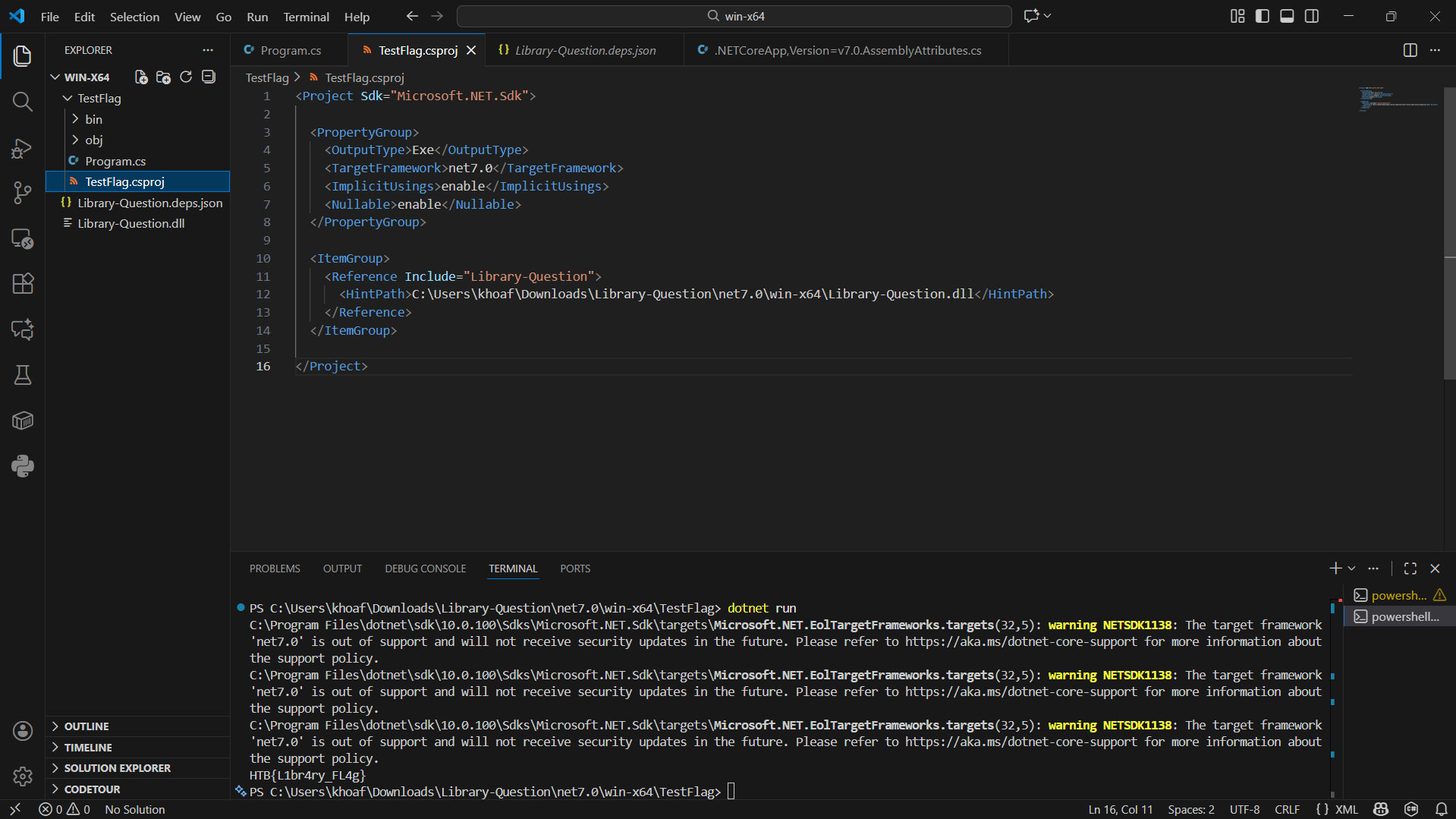
\==> Key Lessons Learned from the Exercise
Distinguish between applications and libraries
A
.dllfile is usually a library, not a standalone application.You cannot run it directly with
dotnet run; instead, you must create a separate project and reference the library.
Correct
.csprojstructureA project file must have a single root
<Project>element.All
<ItemGroup>and<Reference>entries must be placed inside this root.Misplaced XML tags cause build errors like “multiple root elements.”
Namespaces and
usingdirectivesAdding a DLL is not enough; you must know the correct namespace it exposes.
If you use the wrong namespace, the complier will throw “type or namespace not found”.
Managing .NET versions
You saw warnings about
.NET 7.0being out of support.This teaches you to check the framework lifecycle and ensure your project targets a supported version.
Use
.csprojorglobal.jsonto lock your project to a specific SDK/runtime.
Debugging mindset
Error messages are your guide:
hostpolicy.dll not found → you tried to run a library as an app.
multiple root elements → XML structure issue.
namespace not found → missing or incorrect reference.
Reading and interpreting these messages is a critical skill for solving problems quickly.
Practical integration skills
In real-world projects, you often need to integrate external libraries (via NuGet or DLLs).
Knowing how to reference them, configure
.csproj, and resolve build errors is essential for professional development..
About the author
- Mình thích tìm hiểu công nghệ đặc biệt về lĩnh vực an toàn thông tin. Mình có ghi chú các bài này chủ yếu luyện tiếng Anh và đọc thêm. Cảm ơn mọi người đã quan tâm và đón đọc. Nếu có góp ý gì xin hãy liên lạc với mình nhé!
Comments
Join the discussionNo comments yet. Be the first to comment.